• cTrader Admin 10.0 10 Jan

    cTrader Admin 10.0 introduces graphical order visualisation, a new tabbed layout for positions and a redesigned journal for trade events. The update also enhances symbol visibility across the Assets and Symbol sessions apps. Other improvements include custom repeat intervals for sound notifications and the global-only "Popular markets" watchlist.

    cBroker

    Order visualisation

    Order visualisation

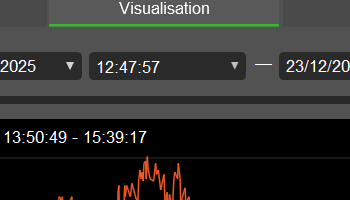
    Explore order details in the newly added "Visualisation" tab, which offers a graphical representation in the Orders app. Click an order event, deal or position label on the chart to open the corresponding window with full details. The enhanced "Ticks" tab allows you to select a specific time range to display a more focused tick data report. Learn more.


    Tabbed position layout

    Tabbed position layout

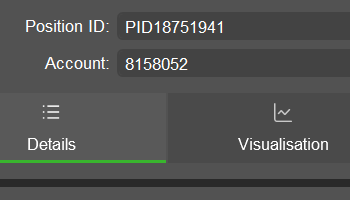
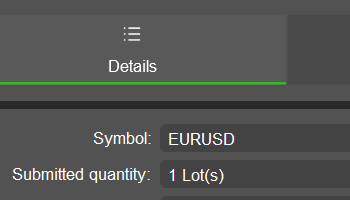
    Review position details in the new tabbed layout, which organises information across the "Details", "Visualisation", "Ticks" and "Journal" tabs in the Positions app. The "Visualisation" tab provides a graphical view for greater clarity, while the "Ticks" tab delivers previously unavailable tick data to support accurate analysis. Learn more.


    Improved order and position journal

    Improved order and position journal

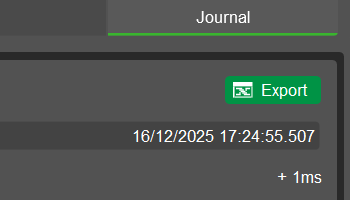
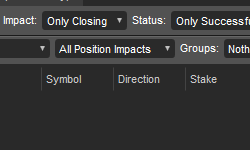
    Examine trade events in the redesigned "Journal" tab of the Orders and Positions apps. A cleaner layout, improved date and time visibility, and visual connectors between events enhance readability and logical flow. These refinements enable faster, more precise analysis of trading activity. Learn more.


    Asset usage information

    Asset usage information

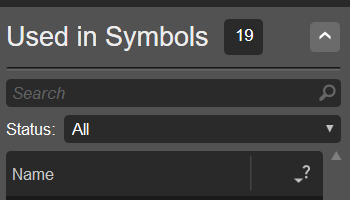
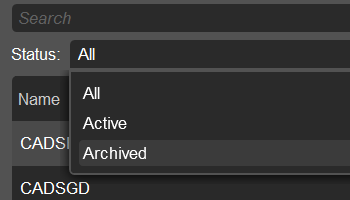
    Spot at a glance where an asset is used via the new "Used in symbols" section in the Assets app. The status filter lets you focus on active or archived symbols, or view all symbols at once. This update simplifies oversight of asset entities and supports more streamlined symbol maintenance. Learn more.


    Archived symbol information

    Archived symbol information

    View all and archived symbols, in addition to active ones, in the "Used as default profile" and "Used in symbols" sections of the Group profiles and Symbol sessions apps, respectively. This change provides full visibility into symbol configuration and supports more accurate instrument management decisions. Learn more.


    Custom repeat for notifications

    Custom repeat for notifications

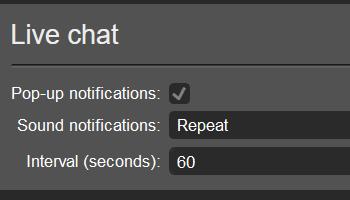
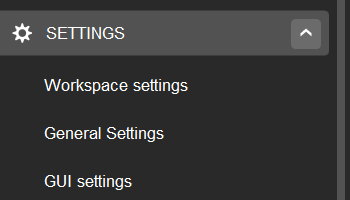
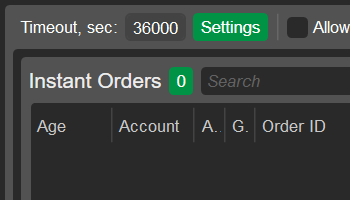
    Set a custom repeat interval for live chat, trade and dealing blotter sound notifications in the Workspace settings app. Opt to repeat, then enter an interval between 5 and 300 seconds, inclusive. This ensures consistent, configurable notifications tailored to different event types and aligned with your call-to-action strategy. Learn more.


    Global-only popular markets

    Global-only popular markets

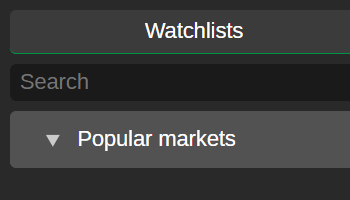
    Note that the "Popular markets" watchlist in cTrader is now global only, and the GUI settings in cTrader Admin no longer offer the "Popular markets per country" configuration. This change reduces configuration complexity and applies a unified approach to identifying popular symbols across regions.


  • cTrader Admin 9.9 08 Nov

    Version 9.9 introduces a space-saving collapsible main menu with the "Global tools" and "Help" sections. This release brings an updated Sessions app, a new Workspace settings app and a redesigned tabbed layout in the Orders app. Other improvements include the ability to rename liquidity providers, expanded useful links and lots-only asset configuration.

    cBroker

    Collapse main menu

    Collapse main menu

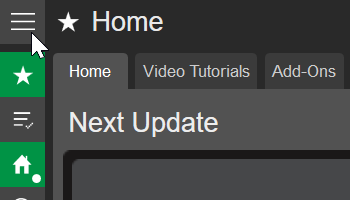
    Clicking the main menu icon in the top-left corner of cTrader Admin 9.9 collapses the list of sections and apps into space-saving icons. Clicking the icon again restores the previous view. This upgrade enables you to optimise your workspace by toggling between expanded and compact layouts. Learn more.


    Access tools and help

    Access tools and help

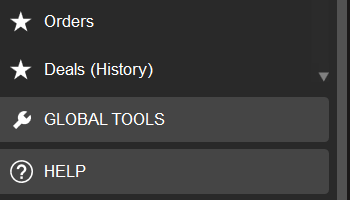
    The "Global tools" and "Help" sections have been moved from the top toolbar to the lower part of the main menu. You can now log in and switch accounts from the top-right corner of cTrader Admin. Together, these refinements enhance usability and provide more intuitive access to key functions. Learn more.


    Track client sessions by email

    Track client sessions by email

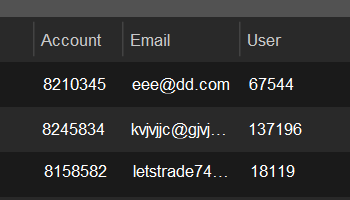
    In the new cTrader Admin, the Sessions app includes an "Email" field in the report results grid. Each session window also displays the user’s email alongside their account number. These enhancements make it easier to identify clients and monitor trading activity by email, improving traceability and user management. Learn more.


    Navigate orders efficiently

    Navigate orders efficiently

    Version 9.9 introduces a redesigned layout in the Orders app to organise information across the "Details", "Ticks" and "Journal" tabs. The "Ticks" tab brings previously unavailable data on bid and ask prices, along with timestamps and tick direction. These additions help you analyse the execution context and verify pricing more effectively. Learn more.


    Manage workspace preferences

    Manage workspace preferences

    The new Workspace settings app unifies configuration controls that were previously spread across multiple apps. You can now adjust preferences for "Export", "Live chat", "Trade notifications", "Dealing blotter" and "Help" in one convenient place. This centralised approach streamlines management and reduces navigation time. Learn more.


    View symbol ID

    View symbol ID

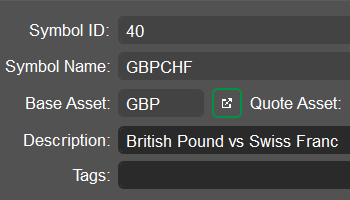
    The "Details" tab of any symbol in the Symbols app now displays the symbol ID, which was previously available only as a field in the main grid. This update provides faster access to unique symbol information, allowing you to verify, compare and manage symbols more efficiently. Learn more.


    Rename liquidity providers

    Rename liquidity providers

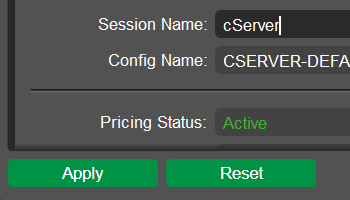
    In the Liquidity feeds app, you can rename any liquidity provider by editing the session name and saving the changes. This new feature enables brokers to customise provider names for clearer identification, greater internal consistency and easier adaptation to changes. Learn more.


    Access useful links

    Access useful links

    Helpful resources have been moved from the top-right corner of cTrader Admin to the bottom of the main menu. Hovering over "Links" opens an updated list of official websites, social media pages and cTrader apps. These refinements provide quicker access to useful information and insights on the latest developments. Learn more.


    Configure assets in lots

    Configure assets in lots

    The lots/units switcher per asset class has been removed from the "Symbol grouping" wizard in the Symbols app. Assets are now configured in lots only in cTrader Admin, while unit settings are available on the trader side in cTrader. This update streamlines asset setup for brokers and aligns configuration with current trading practices. Learn more.


  • cTrader Admin 9.8 release 06 Sep

    Meet the rebranded cTrader Admin 9.8, with even more streamlined and advanced platform management features. Brokers can now change the total margin calculation type for accounts with open positions, group sessions by properties and view symbol split history. Other updates include colour coding for accounts and groups, improved filters and support for copying grid text.

    cBroker

    Copying text from grids

    Copying text from grids

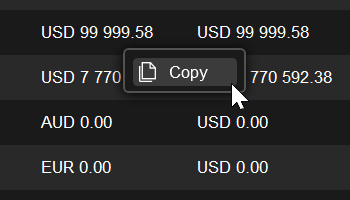
    Grid cells across all applications now support text copying. Right-click an entry to open the context menu and select "Copy" to complete the action. This enhancement delivers a simple, consistent way to capture information, enabling faster data transfer and easier reuse. Learn more.


    Rebranding cBroker to cTrader Admin

    Rebranding cBroker to cTrader Admin

    cBroker has been rebranded as cTrader Admin. This new name reflects its central role as the platform management system for brokers, offering a streamlined interface to configure accounts, manage symbols, control access rights and oversee all trading operations within the cTrader ecosystem. Learn more.


    Changing margin calculation with open positions

    Changing margin calculation with open positions

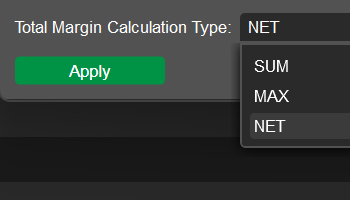
    In the Accounts application, managers can now change the total margin calculation type for accounts with open positions, providing greater flexibility and streamlining the process. This update removes the previous validation on open positions, although such changes may result in margin calls. Learn more.


    Grouping sessions by properties

    Grouping sessions by properties

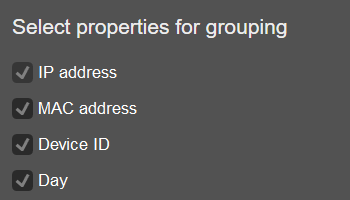
    cTrader Admin 9.8 introduces a new functionality for grouping sessions into separate tabs in the Sessions application. The properties include "IP address", "MAC address", "Device ID" and "Day", or any combination of these. Managers can now quickly identify logins to multiple accounts from the same IP and device, making it easier to analyse user patterns and detect unusual activity. Learn more.


    Labelling accounts with colours

    Labelling accounts with colours

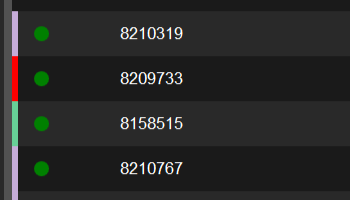
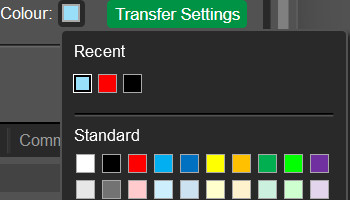
    The Accounts application now supports colour coding, with assigned colours displayed in the main grid for quick identification. Managers can filter by colour to isolate accounts or locate groups, improving visibility and streamlining account management. Colour coding is also included when exporting accounts to XLSX files. Learn more.


    Labelling groups with colours

    Labelling groups with colours

    Version 9.8 introduces colour coding for groups in the Groups application. Selected colours are shown in the central grid for quicker navigation and clearer organisation. Groups can also be filtered by colour to easily find specific categories, improving group management and simplifying workflows. Learn more.


    Viewing symbol split history

    Viewing symbol split history

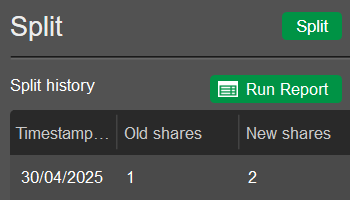
    A complete record of symbol splits is now available in the new "Split" section under the "More" tab of each symbol. After running a report, the grid displays detailed information, allowing managers to review all changes in old and new shares at a glance. The symbol split functionality has also been moved to this section. Learn more.


    Applying improved filters

    Applying improved filters

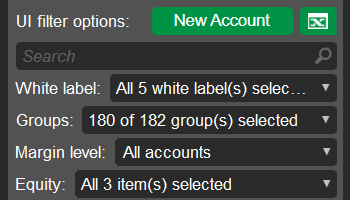
    Filters in applications now feature an improved layout, with options arranged more cleanly and spaced consistently. When the window size changes, filter items automatically rearrange while remaining neatly organised. These enhancements deliver a smoother, more consistent user experience. Learn more.


    Navigating symbol parameters efficiently

    Navigating symbol parameters efficiently

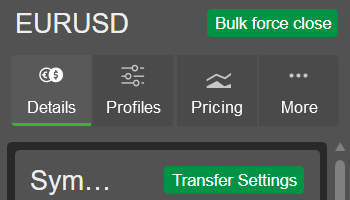
    cTrader Admin 9.8 brings a redesigned layout in the Symbols application, organising symbol parameters into tabs such as "Details", "Profiles", "Pricing" and "More". Key settings, data and action buttons are placed at the top of each tab for convenient access, while collapsible sections hold additional information to reduce clutter. Learn more.


  • cBroker 9.7 release 05 Jul

    cBroker 9.7 introduces a redesigned tabbed layout for account parameters, along with a new field for internal notes in the Accounts application. A new help icon, displayed in major apps and action wizards, enables one-click access to relevant User Guide articles. Changes to daily report sending and commission charging times are now validated against server time, helping prevent missed actions.

    cBroker

    Accessing help instantly

    Accessing help instantly

    A question mark icon now appears when you hover over section headings in major apps, including Accounts, Symbols, Group Profiles, Positions, Orders and more. You can also access help through wizards for key actions such as creating entities, transferring settings, etc. A single click takes you directly to the relevant article in the cBroker User Guide, where you will find all the details needed to support faster onboarding, improved decision-making and smoother workflows. Learn more in our User Guide.


    Adding descriptions to accounts

    Adding descriptions to accounts

    Version 9.7 brings a "Description" field to the "Account settings" section of each account, allowing managers to add internal notes, handling instructions or comments to label accounts. You can sort the entire accounts grid by this field to more easily identify specific entities. This addition enhances account monitoring and management by providing valuable context and enabling flexible, account-level commenting. Learn more in our User Guide.


    Navigating account data efficiently

    Navigating account data efficiently

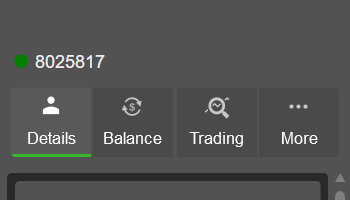
    cBroker 9.7 introduces a redesigned layout in the Accounts application to organise account parameters into streamlined tabs such as "Details", "Balance", "Trading" and "More". Frequently accessed data is now displayed at the top of each tab, while additional information is grouped in collapsible sections. This optimised structure helps managers quickly locate and focus on key data, reducing visual clutter and enhancing productivity when managing accounts. Learn more in our User Guide.


    Validating report and commission time changes

    Validating report and commission time changes

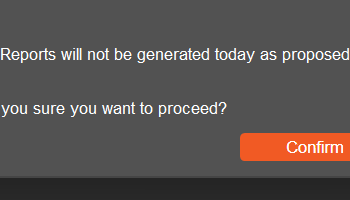
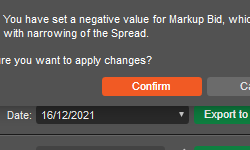
    Changes to the daily report sending time and commission charging time are now validated against the current server time. If the new time has already passed while the previous time is still upcoming, a warning alerts managers that today's action will be skipped. They can then decide whether to proceed or cancel the change. This prevents accidental omissions and supports safer, more risk-aware configuration. Learn more in our User Guide.


  • cBroker 9.6 release 03 May

    cBroker 9.6 introduces a new option to automatically update charts during the symbol split process. The responsiveness of the Accounts application has been improved through enhanced caching, while a new Sessions app provides detailed session tracking and reporting. Additional features empower managers to quickly export white label names, cancel pending orders for an account and rewrite server settings more efficiently.

    cBroker

    Updating charts during symbol split

    Updating charts during symbol split

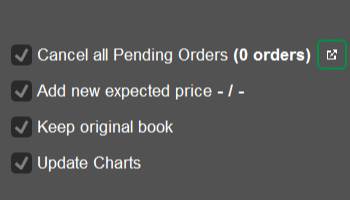
    A new "Update charts" checkbox has been added to the symbol split feature in cBroker 9.6. When enabled, this option updates all charts for the entire period, with bars recalculated based on m1 data and standard rounding applied. The update streamlines symbol management for brokers and ensures accurate, split-adjusted charts for traders, delivering a consistent trading experience. Learn more in our User Guide.


    Navigating accounts more efficiently

    Navigating accounts more efficiently

    A caching mechanism has been implemented to improve the responsiveness of the Accounts application. By caching account data locally, cBroker minimises repeated data requests, resulting in faster load times and a smoother user experience. This enhancement allows managers to navigate and manage trading accounts with greater speed, especially when working with large datasets.


    Reviewing traders' session data

    Reviewing traders' session data

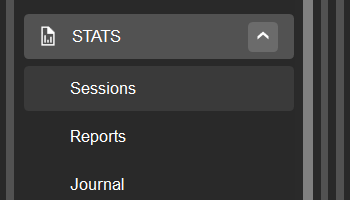
    The new Sessions application, located under the "Stats" group in the main menu, provides detailed insights into traders' session activities, including session ID, white label, time, account, IP address and more. Managers can generate reports for a specific time period, apply several UI filters and export data as needed. The update improves monitoring capabilities and pattern recognition, supporting early detection of trends and unusual activity across different white labels and application types. Learn more in our User Guide.


    Exporting white label lists

    Exporting white label lists

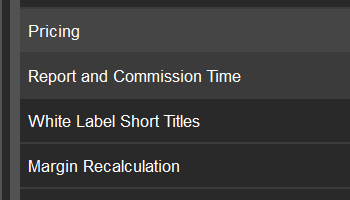
    Managers can now quickly export a list of white label names using the new "Export" button in the "White label short titles" section of the General settings application. This feature enhances data transferability and facilitates backup or audit processes. Learn more in our User Guide.


    Cancelling pending orders for accounts

    Cancelling pending orders for accounts

    The "Bulk force close" functionality in the Accounts application now includes a "Cancel pending orders" button, in addition to the existing option to close positions. This allows managers to instantly cancel pending orders for a selected account from the same window, streamlining bulk operations in emergency situations and facilitating risk management. Learn more in our User Guide.


    Rewriting settings between servers

    Rewriting settings between servers

    The "Transfer settings between servers" feature in "Global tools" has gained the ability to rewrite all conflicting settings with new values. When you upload a file containing target settings and select the rewrite option, all parameters of the existing entity that differ from those in the uploaded file will be replaced accordingly. This enhancement significantly reduces the time required to copy settings between servers. Learn more in our User Guide.


  • cBroker 9.5 release 08 Mar

    cBroker 9.5 introduces the option to skip margin and balance checks, enabling brokers to bypass verifications and perform balance operations for clients regardless of their margin levels or balance. Managers can now set a higher maximum leverage of up to 10,000 for specific users, and they can also use a new bulk functionality to swiftly force-close all open positions for a given account. Other new enhancements allow cBroker users to move open positions between books, transfer settings across group profiles and change managers' names.

    cBroker

    Skipping margin and balance checks

    Skipping margin and balance checks

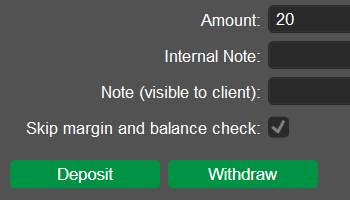
    cBroker 9.5 introduces a "Skip margin and balance check" option that enables brokers to perform balance operations even when the margin level is below 100% or the current balance is insufficient. When this option is selected in the "Deposit/withdraw funds" window in the Accounts application, margin and balance verifications are bypassed. This setting offers brokers greater flexibility and control over account management, particularly in situations where margin and balance requirements are not met. Learn more in our User Guide.


    Setting higher maximum leverage

    Setting higher maximum leverage

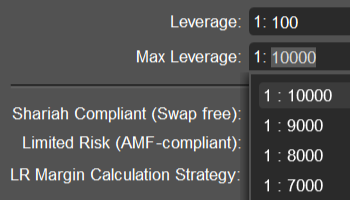
    In the new version, managers can set the maximum leverage for a specific user up to 10,000, bringing an increase from the previous maximum limit of 4,000. Preset values of 6,000, 7,000, 8,000 and 9,000 are also provided as options in the "Account settings" section of the Accounts application. These enhancements give brokers more control over leverage configurations while enabling a more personalised approach to managing trading activities. Learn more in our User Guide.


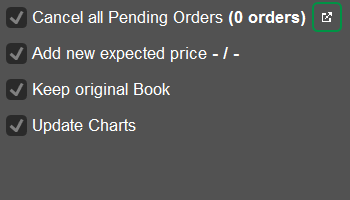
    Keeping original book for symbol split

    Keeping original book for symbol split

    cBroker now offers the "Keep original book" option for symbol split operations, designed to enhance brokers' flexibility in managing stocks. Once enabled in the "Split" wizard for a symbol, this setting ensures that open positions in a specific book are closed and automatically reopened in the same book after the split. By keeping positions within the same book, brokers can avoid disruptions to risk and liquidity management. Learn more in our User Guide.


    Moving open positions across books

    Moving open positions across books

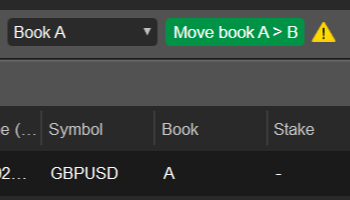
    The new "Move book ..." button in the Positions application allows brokers to move selected open positions from Book A to Book B and vice versa. This functionality is particularly useful for hedging positions or transferring them to another book for closure, especially when the liquidity provider rejects closure orders. Beyond streamlining position management, this feature offers managers enhanced flexibility and control in managing risk. Learn more in our User Guide.


    Bulk force closing open positions

    Bulk force closing open positions

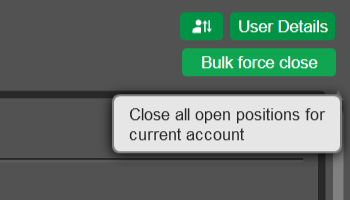
    With the new "Bulk force close" button in the Accounts application, brokers can force-close all open positions for a specific user account. This feature allows for immediate action in response to policy violations or market volatility, helping brokers mitigate risks and ensure compliance. Learn more in our User Guide.


    Transferring settings across group profiles

    Transferring settings across group profiles

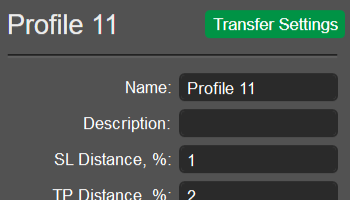
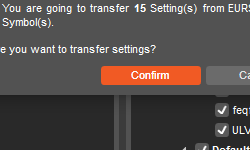
    A "Transfer settings" button is now available for all entities in the Group Profiles application, including commission, leverage, volume, execution, GSL schedule, protection, swap-free and notification profiles. With this functionality, managers can effectively transfer specific settings of a profile to one or multiple profiles within the same tab, reducing manual input and ensuring consistency of profile settings. Learn more in our User Guide.


    Changing managers' names

    Changing managers' names

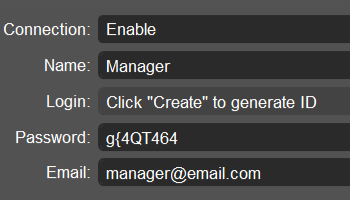
    Version 9.5 allows managers to edit the "Name" field in the Managers application. This update provides brokers with an easy way to modify a manager's details on the spot, particularly when there is a change in personnel within the same role, ensuring accurate and up-to-date information for their staff. Learn more in our User Guide.


    Enhancing UI readability in grids

    Enhancing UI readability in grids

    In cBroker 9.5, consecutive grid rows in all displayed lists and reports alternate between distinct shades of grey for improved readability. This interface improvement reduces eye strain and helps managers track data more comfortably, minimising potential errors.


  • cBroker 9.4 Updates 11 Jan

    cBroker 9.4 introduces the highly anticipated symbol split functionality, empowering brokers to efficiently perform split operations for assets, particularly stocks. Other released enhancements enable managers to monitor the isolation type for a white label’s copy trading, track strategy performance and delete feed symbol settings for multiple symbols at once. The new features also grant brokers the capacity to set larger stop-loss distances for better risk management, streamline the transfer of settings across multiple accounts and navigate large volumes of historical deal data using a new filter.

    cBroker

    Splitting Symbols

    Splitting Symbols

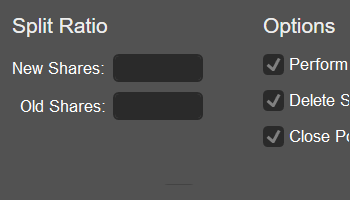
    Brokers can now execute a stock split with positions closed and reopened in Book B. The ability to split positions in Book A will be available in the next release. The 'Split Symbol' wizard allows cBroker users to choose a symbol and input values for new and old shares to establish the split ratio. By automating several tasks that were previously done manually, cBroker has significantly reduced the time and effort required to execute splits.


    Importing Account List for Settings Transfer

    Importing Account List for Settings Transfer

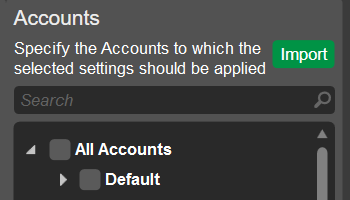
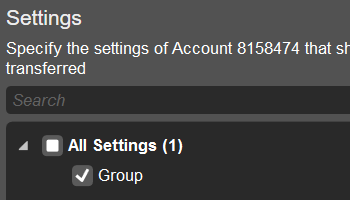
    application simplifies the transfer of settings for multiple accounts. Instead of manually selecting each destination account in the account tree, managers can now upload a CSV file containing the required account numbers. Configuring and updating settings across large sets of accounts has been streamlined.


    Tracking Strategy Performance

    Tracking Strategy Performance

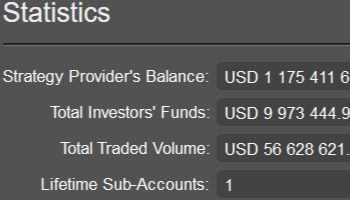
    application. cBroker users can conveniently assess strategy performance statistics in one place, track the number of investors and make informed decisions on strategy management.


    Filtering Deal History Reports

    Filtering Deal History Reports

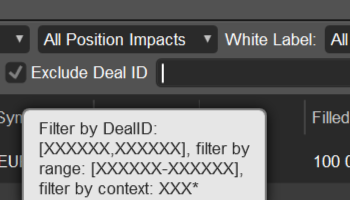
    application has been upgraded to enhance navigation through large data sets and simplify reporting for brokers. You can use the new 'Exclude Deal ID' filter to omit specific deals from the report results by their ID. Filter settings are now saved automatically, eliminating the need to apply the same filters repeatedly.


    Exporting Position and Order Events

    Exporting Position and Order Events

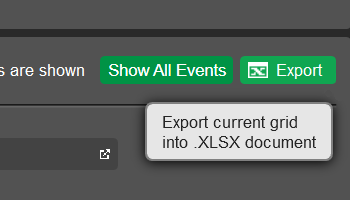
    and Positions applications. Managers can take advantage of this functionality to export detailed event data for orders or positions into an XLSX file with a single click. This feature simplifies data management and facilitates effective record-keeping for brokers.


    Accessing Position Open Time for Deals

    Accessing Position Open Time for Deals

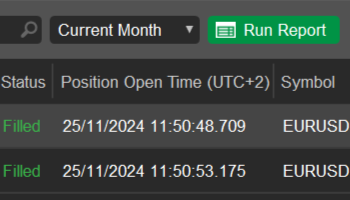
    application, the table located in the 'Deals' section has been furnished with the new 'Position Open Time' column. This provides managers with an additional parameter for revising and sorting the deal statistics for a specific trading account. By leveraging this information, brokers can gain more detailed insights into trading behaviours.


    Locating Email Mismatches

    Locating Email Mismatches

    application enables managers to detect instances where the user’s email and account email do not match. The generated report includes fields such as 'User ID', 'Email', 'Nickname', 'Account' and 'Account Email' for the listed accounts. By eliminating mismatches, brokers can enhance the accuracy of their client databases and prevent mistakes in email communications.


    Viewing Isolation Type for Copy Trading

    Viewing Isolation Type for Copy Trading

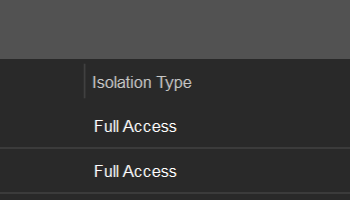
    application now features the 'Isolation Type' column, keeping brokers informed about the copy trading membership status for each white label listed. With this advancement, managers can effortlessly track the recommended collateral balance for brokers with full membership.


    Updating Assets in Bulk

    Updating Assets in Bulk

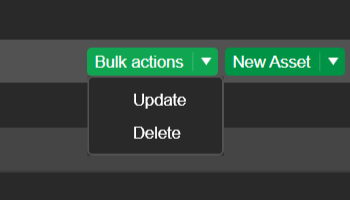
    application, empowering managers to update multiple assets at once by uploading a CSV file with the required details. CSV-based bulk updates facilitate faster, more accurate and consistent changes across multiple assets in cBroker 9.4.


    Bulk Deleting Feed Symbol Settings

    Bulk Deleting Feed Symbol Settings

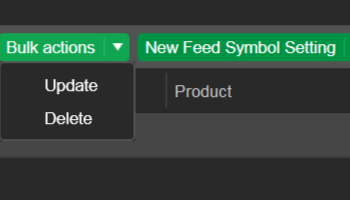
    application now offers the option to delete, in addition to the original update feature. Managers can use the 'Delete' functionality to remove unwanted feed symbol settings for multiple symbols, improving operational efficiency and market data management.


    Setting Higher Stop-Loss Distances

    Setting Higher Stop-Loss Distances

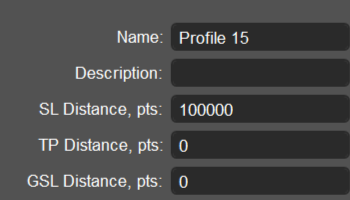
    application has been increased from 10,000 to 100,000 points. This change enables brokers offering highly volatile symbols to set larger stop-loss distances in the Protection Profiles tab, providing improved risk management and increased flexibility.


  • cBroker 9.3 Updates 05 Oct

    cBroker 9.3 delivers a CSV export functionality, enabling faster and more efficient data exports without line limits. Other new features allow brokers to adjust balances for multiple accounts simultaneously, export tick data for a specified timeframe within a single day and restore archived symbols in bulk. The search functionality now supports all-level search in all trees across cBroker applications, elevating user experience. Stronger password requirements have been implemented for manager accounts to improve security. Performance enhancements in the Accounts and Positions applications ensure advanced UI responsiveness.

    cBroker

    Exporting Data to CSV Files

    Exporting Data to CSV Files

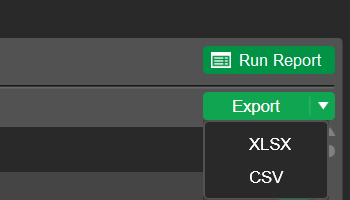
    The latest cBroker introduces a CSV export feature, providing brokers with a more powerful tool for managing large datasets. Compared to XLSX, CSV exports are faster and have no line limits, making them ideal for exporting large volumes of data from deals, orders and positions. You can now migrate your clients' trading activities more efficiently.


    Searching across All Tree Levels

    Searching across All Tree Levels

    application — a feature specifically requested by brokers. This upgrade allows brokers to locate important entities quickly and effortlessly.


    Setting Stronger Passwords

    Setting Stronger Passwords

    In cBroker 9.3, stricter password requirements have been implemented to improve security for manager accounts. Passwords must now be a minimum of 8 characters long and include at least 3 of the following: uppercase letters, lowercase letters, numeric characters and non-alphanumeric characters. This change applies to new manager accounts, while existing accounts must comply with these criteria when changing their passwords.


    Adjusting Multiple Account Balances

    Adjusting Multiple Account Balances

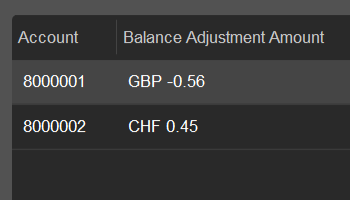
    With the new 'Mass Accounts Balance Adjustments' feature, brokers can adjust the balances of multiple accounts in a single operation. After selecting this option from the 'Global Tools' menu, you can upload a CSV file containing account numbers and their respective adjustments. The new feature is especially helpful for correcting discrepancies from incorrectly closed trades, streamlining the process of making accurate bulk adjustments.


    Exporting Tick Data for a Period

    Exporting Tick Data for a Period

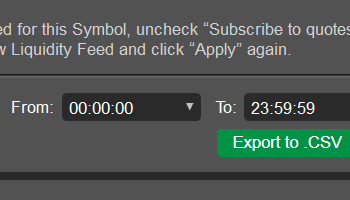
    application now includes a time field, enabling brokers to export tick data for a symbol within a time range on a given day. This addition enhances the precision of data exports, helping brokerage managers target specific timeframes for more effective reporting and analysis.


    Restoring Archived Symbols in Bulk

    Restoring Archived Symbols in Bulk

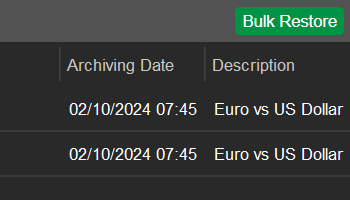
    application. This feature is especially helpful for brokers who archived symbols intending to restore them later, ensuring smoother workflows and immediate access to important assets.


    Navigating Accounts and Positions Faster

    Navigating Accounts and Positions Faster

    and Positions applications. Smooth scrolling is maintained even after window resizing, and multiple UI rendering issues have been resolved, resulting in a more refined user experience.


  • cBroker 9.2 Updates 03 Aug

    The latest cBroker 9.2 introduces significant performance improvements across all applications. The functionality for duplicating session profiles, holiday profiles and holidays has been added to the **Symbol Sessions** application. Now, users can conveniently transfer the group profiles of a reference symbol to other symbols within the selected group. Brokerage reporting will benefit from the inclusion of the 'Group' column in the ‘Open Positions’ grid.

    cBroker

    Duplicating Profiles in Symbol Sessions

    Duplicating Profiles in Symbol Sessions

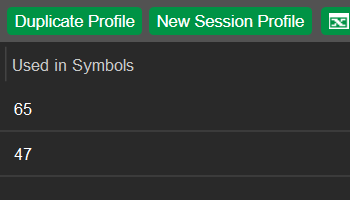
    application. Choose a donor profile you wish to copy, adjust its parameters as needed and input a unique profile name. The new feature is designed to streamline your workflow with symbol sessions and save time by eliminating the need to create profiles from scratch each time.


    Transferring Symbol Settings within Groups

    Transferring Symbol Settings within Groups

    application to execute this effortlessly for a large number of groups. After choosing a reference symbol, the transfer functionality allows you to copy the group profiles of this symbol to other specified symbols within each selected group.


    Spotting Open Positions by Group

    Spotting Open Positions by Group

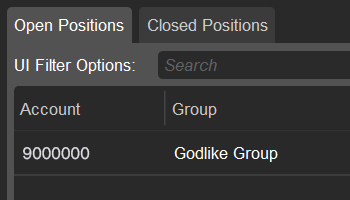
    application has gained a new column, ‘Group’. With this enhancement in cBroker, you can now effectively categorise and analyse open positions based on their respective groups. The addition facilitates internal and external reporting for brokerage managers, allowing them to spot positions by entity more easily.


  • cBroker 9.1 Updates 08 Jun

    cBroker 9.1 has been released with significant performance improvements in handling events related to positions. The latest version delivers the functionality of setting negative values for dividends in the **Swaps and Dividends** application, a crucial feature for dealing with indices. You can now copy all profiles from the **Group Profiles** application by simply duplicating them, with the possibility to modify the source parameters.

    cBroker

    Setting Negative Dividend Values

    Setting Negative Dividend Values

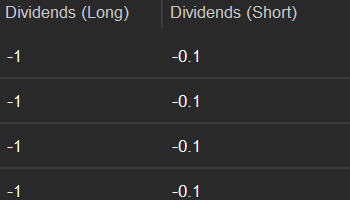
    application. With this functionality on board, cBroker demonstrates commitment to empowering brokers with an adaptable trading environment across diverse liquidity provision networks. As a result, transparent and fair trading conditions will be established for end users.


    Duplicating All Group Profiles

    Duplicating All Group Profiles

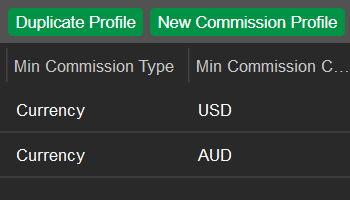
    application. The new ‘Duplicate Profile’ functionality has been added to the Commission Profiles, Leverage Profiles, Volume Profiles, Execution Profiles, GSL Schedule Profiles, Protection Profiles, Swap Free Profiles and Notification Profiles tabs. The selected donor profile will be copied with its parameters, while you need to input a new profile name and may alter the source parameters if required.


    Handling Events with Improved Performance

    Handling Events with Improved Performance

    cBroker 9.1 handles a larger number of events related to positions with improved performance. We have optimised the consumption of memory and significantly reduced the execution time. These improvements ensure that cBroker can manage higher volumes of data and activities more effectively, providing users with a robust and responsive back office solution.


  • cBroker 9.0 Updates 06 Apr

    Version 9.0 delivers essential UI enhancements to the **Home** application and enables customisation of the cBroker main menu. The first tab of the **Home** application will update you about the next maintenance timeframe immediately after the cBroker launch. You can reorder sections and applications inside sections in the main menu for more convenient navigation. Eventually, establishing a negative balance limit for the negative balance protection functionality in the **Groups** application enriches brokers’ toolset and enhances risk management.

    cBroker

    Adding Negative Balance Limit to Group Settings

    Adding Negative Balance Limit to Group Settings

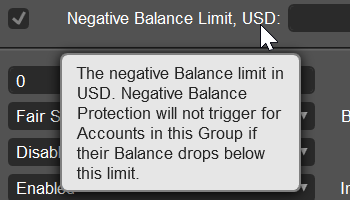
    application, you can now add a negative balance limit in USD. If the negative balance of any account belonging to this group drops below the defined limit, the protection will not be triggered, and the server will not top up the account balance automatically. Otherwise, the negative balance protection is triggered, and the account balance is restored to zero. This is a handy functionality for brokers to avoid manual reviews and manage risks.


    Reordering Sections and Applications in the Main Menu

    Reordering Sections and Applications in the Main Menu

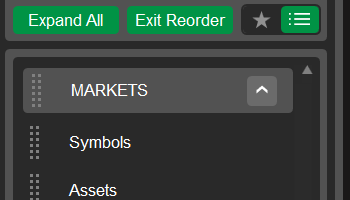
    The main menu of cBroker is now customisable. You can drag and drop application sections and change the order of applications within each section as you find convenient. Just note that the ‘Favourites’ section always remains at the top. The sequence of sections and applications is saved per manager per environment. When a new section or application is added to cBroker, you will find it at the end of the main menu or respective section. Setting your preferred order of sections and applications, you will navigate around cBroker most efficiently.


    Improving the ‘Home’ Application UI

    Improving the ‘Home’ Application UI

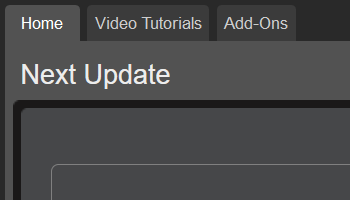
    application has been reorganised to adopt a consistent approach across cBroker, structuring its elements into tabs that are familiar to users. This enables smoother navigation in the Home application, facilitated by a cleaner interface and a visual hierarchy of information. The Home tab provides details about the upcoming scheduled update and features expandable ‘What’s New’ notes for recent application versions. The Video Tutorials tab displays cBroker videos for users’ quick and easy access. Finally, the Add-Ons tab catalogues key features provided by Spotware upon request. Now, you will never miss important updates with the upgraded Home application which is the first thing you see after cBroker opens.


  • cBroker 8.9 Updates - February 2024 03 Feb

    Version 8.9 adds several major improvements to the **Dealing Settings** and **Dealing Blotter** applications by revising their UI and adding several quality-of-life features. The rules for sharing accounts with other users can now be set at the group level. The **General Settings** application (which was previously the **General** application) has been made similar to the GUI Settings application in terms of its structure. This release also adds the option to charge custom commissions when force opening positions. In the **Journal** application, you can generate reports that only contain information about your managers’ activities. In the **Deals**, **Orders**, and **Positions** applications, you can now filter data by asset class. Additionally, price filtering settings can be transferred between several symbols in the **Symbols** application. In the same application, the FIX API Access section has been hidden for all sub-accounts. The cBroker installer should now be more reliable and accessible regardless of the restrictions imposed by your network provider.

    cBroker

    Refactoring and UI Improvements in the ‘Dealing Settings’ and ‘Dealing Blotter’ Applications

    Refactoring and UI Improvements in the ‘Dealing Settings’ and ‘Dealing Blotter’ Applications

    and Dealing Blotter applications have been revised to provide a smoother and quicker action flow for your dealing desk. You can now open the Dealing Settings application (including timeout settings) in a detached window directly from the Dealing Blotter application, which is crucial for reacting quickly to changing market conditions. The process for creating max auto execution size profiles has been changed to resemble the same process for group profiles. The settings of max auto execution size profiles can also be transferred from one profile to another, simplifying the management of complex dealing desks.


    Defining Shared Access Rules at the Group Level

    Defining Shared Access Rules at the Group Level

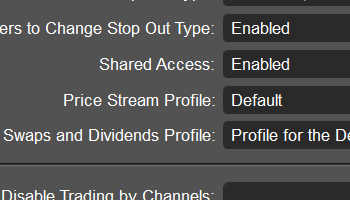
    Adding another tool for complying with various regulatory demands, version 8.9 allows for configuring the availability of shared access at the group level. You can enable shared access only for accounts that are subject to regulatory requirements that do not prevent account sharing and disable this feature for all other accounts. This change also entails that the shared access functionality, which has previously been only available in non-branded cTrader applications, can now be added to your branded cTrader apps. To request the implementation of shared access in your branded apps, please contact Spotware’s service assurance team.


    Revising the UI of General Settings

    Revising the UI of General Settings

    application (formerly known as the General application) has been revised to closely match the UI of the GUI Settings application. Now, all sub-sections are displayed as rows in the central grid. On selection, the settings related to the chosen sub-section are opened in the right-most column of the UI. This change makes managing general settings more convenient, particularly if you are used to the flow of the GUI Settings application.


    Charging Custom Commissions on Force Open

    Charging Custom Commissions on Force Open

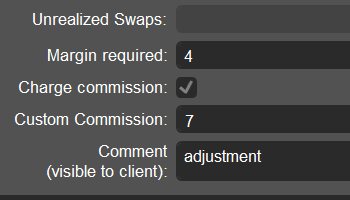
    When force opening positions, you can now charge custom commissions rather than having to charge commissions according to the settings specified in the related commissions profile established at the group symbol level. As a result, you gain more control over trading conditions in the event you need to reopen a particular position. Note that if no custom commission is set during force open, the commission specified in the commission profile will apply to this action.


    Adding New Report Parameters to the ‘Journal’ Application

    Adding New Report Parameters to the ‘Journal’ Application

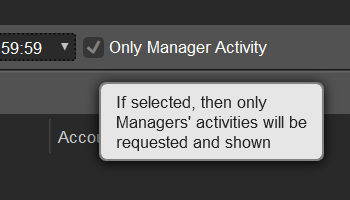
    application, you can now generate reports that only contain records about the actions performed by your managers. To do so, enable the ‘Only Manager Activity’ checkbox in the Account Activity tab and click on ‘Run Report’. Furthermore, the Journal application can now generate reports that contain data for more than one day. Note that you can only select a time period longer than one day if the ‘Only Manager Activity’ checkbox is enabled. You can use multi-day manager activity reports to optimise your risk management processes and fine-tune the delegation of access rights to various managers.


    Adding Filtering by Asset Class to Orders, Deals, and Positions

    Adding Filtering by Asset Class to Orders, Deals, and Positions

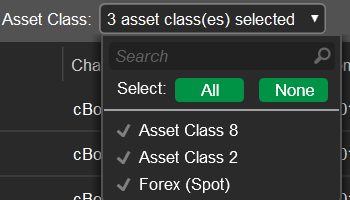
    , Orders, and Positions applications now have an additional ‘Asset Class’ filter option. Asset classes allow for grouping symbols by custom criteria (such as separating US indices from EU indices). As a result, you should now be able to filter order, deal, and position data by whatever custom classes you have created. This quality-of-life feature is particularly useful if you have several asset classes that you need to closely monitor.


    Transferring Price Filtering Settings

    Transferring Price Filtering Settings

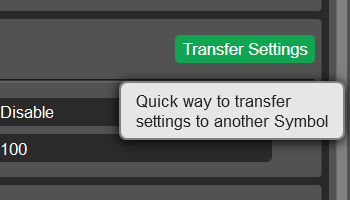
    application, you can now transfer price filtering settings between two or more symbols. This makes it possible to quickly apply your preferred price filtering rules to a large number of symbols, which can be a useful tool for risk management.


    Hiding FIX API Access for Sub-Accounts

    Hiding FIX API Access for Sub-Accounts

    application as well in any other window that displays the details of an account entity.


    Improving the cBroker Installation Process

    Improving the cBroker Installation Process

    The cBroker installer has been improved to simplify the setup process. The possibility of unexpected issues arising during installation has been reduced significantly. The cBroker installer has also been made more accessible for locales in which network providers have previously imposed restrictions preventing users from opening this file.


  • cBroker 8.8 Updates - October 2023 07 Oct

    Version 8.8 adds a convenient means of viewing your next update date, simplifying operational planning. The **Accounts** application now allows for transferring essential settings between accounts which should facilitate the management of densely populated trading servers. In the same application, managers with sufficient permissions should now be able to withdraw funds from Copy sub-accounts regardless of their copying status. Adding one more Copy-related feature, the **Deals** application now contains the History per Strategy tab which can be used to generate deal reports on a per strategy basis. The **Symbols** application has also been improved so that it is possible to perform certain actions (updating and archiving symbols) in bulk.

    cBroker

    Displaying the Next Update Date

    Displaying the Next Update Date

    application now includes a new ‘Next Update’ section. In it, you should see the start and end times of the next update of cBroker and/or the cTrader backend. This information can be used to plan your operations around the times of brief service unavailability. As updates usually occur on the first Saturday following the release of US employment data, the section also includes a button leading to the official employment releases calendar. You can add this data to your calendar of choice so that you are fully prepared for future updates. In rare cases, updates may occur outside of the usual schedule. If this happens, the ‘Next Update’ section will still provide accurate and reliable information.


    Transferring Settings in the ‘Accounts’ Application

    Transferring Settings in the ‘Accounts’ Application

    application has been made to offer the ‘Transfer Settings’ functionality. After selecting an account in the central grid, you should see the new ‘Transfer Settings’ button to the right of the account number in the entity details column. Click on it, and you will be prompted to transfer several essential account settings (e.g., the group to which the selected account is attributed) to one or more accounts.


    Allowing for Withdrawing Funds From Sub-Accounts Regardless of Copying Status

    Allowing for Withdrawing Funds From Sub-Accounts Regardless of Copying Status

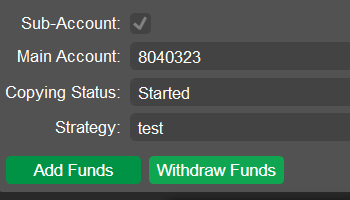
    Previously, it was only possible to withdraw funds from Copy sub-accounts if their copying status was set at ‘Stopped’. Starting from version 8.8, you will be able to withdraw money from sub-accounts even if these sub-accounts are actively investing in a strategy and their copying status is set to ‘Started’. This provides a valuable mechanism for managing Copy-related flows of funds.


    Deals Statistics per Strategy

    Deals Statistics per Strategy

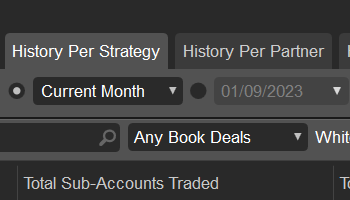
    application now contains the History per Strategy tab. It provides several report parameters and UI filter options that you can use to attain fine-tuned reports about the deals generated by sub-accounts investing in various Copy strategies. The reports include detailed information about essential metrics including the total number of sub-accounts that have traded during the chosen report period, the total number of deals generated by these sub-accounts, and the total traded volume.


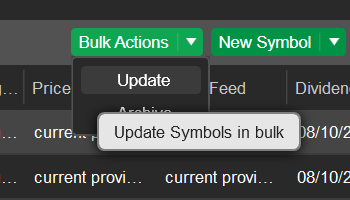
    Allowing for Updating Symbols in Bulk

    Allowing for Updating Symbols in Bulk

    application, it is now possible to upload locally stored .CSV and .XLSX files containing symbol settings. On a successful upload, all matching symbols that exist on your server will be updated to match the settings from the chosen file. To access this functionality, open the new ‘Bulk Actions’ menu (located to the left of the ‘New Symbol’ menu) and select ‘Update’. If matching symbols are not found or if the new settings fully match the existing symbol settings, the corresponding data will not be displayed in the upload window.


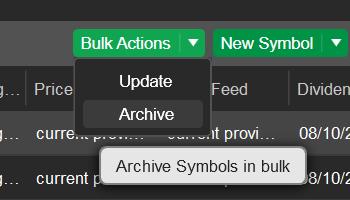
    Archiving Symbols in Bulk

    Archiving Symbols in Bulk

    application. However, it was only possible to perform this action for individual symbols. Starting from cBroker 8.8, you will be able to archive large numbers of symbols or even entire symbol categories. To access this functionality, open the ‘Bulk Actions’ menu in the Symbols application and select ‘Archive’.


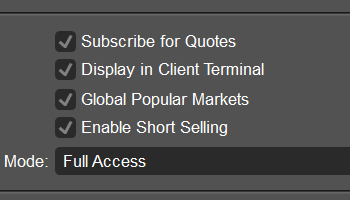
    Changing the Logic of Configuring Popular Markets

    Changing the Logic of Configuring Popular Markets

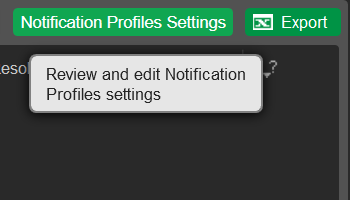
    application, the ‘Display in Popular Markets’ flag has become the ‘Global Popular Markets’ flag. Its logic has also been changed: if this flag is enabled for a particular symbol, the symbol will be displayed in the ‘Popular Markets’ display in cTrader but only when the terminal is accessed from a country that is not included in any custom country sets in the ‘Popular Markets per Country’ section of the GUI Settings application. In the GUI Settings application itself, it is now impossible to configure the default watchlist for the ‘Popular Markets’ display.Email and in-app trade notifications are essential for accurate risk management. To simplify configuring notifications profiles (which determine when and how trade notifications are triggered), we have added the ‘Notification Profiles Settings’ button to the Trade Notifications application. Upon clicking on it, cBroker should open a new detached window displaying the Notifications Profile tab in the Group Profiles application.


    Adding the Option to Delete Assets in Bulk

    Adding the Option to Delete Assets in Bulk

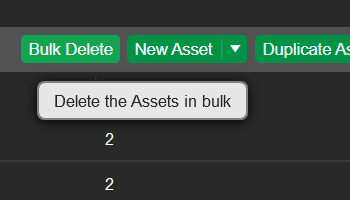
    application now includes the ‘Bulk Delete’ button. Upon clicking on it, cBroker will prompt you to select the assets/asset classes that you would like to remove from your server. If it is impossible to delete an asset (e.g., if it is used in any symbol(s) as a base/quote asset), it will be greyed on in the ‘Bulk Delete Assets’ window.


    Skipping Empty Values When Performing Bulk Actions

    Skipping Empty Values When Performing Bulk Actions

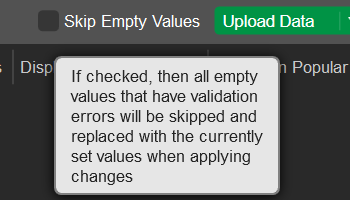
    When performing bulk actions that involve uploading locally stored files (e.g., the new ‘Bulk Update’ action for symbols), you should be able to leave fields that you do not want to update empty in the files that you choose to upload. All relevant upload windows now include the ‘Skip Empty Values’ flag. If it is enabled, and you upload a file with one or more empty fields, cBroker will not raise any conflicts and, instead, will retain the corresponding existing settings of the matching entities. As a result, the process of creating the files necessary for bulk actions and successfully uploading them is made much quicker.


    Uploading .XLSX Files in All Major Uploading Features

    Uploading .XLSX Files in All Major Uploading Features

    In past versions of cBroker, several major uploading features (e.g., mass importing symbols) differed in their behaviours in that some of them allowed for uploading both .CSV and .XLSX files while others only accepted .CSV files. With this new release, all important uploading features have been changed to process both .CSV and .XLSX files. If you prefer working with .XLSX, there is no longer a need to keep separate .CSV files just for cBroker.


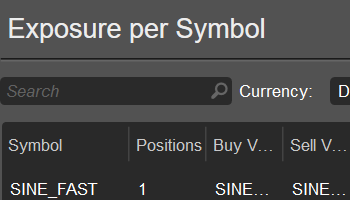
    Increasing the Accuracy of Exposure per Symbol Reporting

    Increasing the Accuracy of Exposure per Symbol Reporting

    When performing bulk actions that involve uploading locally stored files (e.g., the new ‘Bulk Update’ action for symbols), you should be able to leave fields that you do not want to update empty in the files that you choose to upload. All relevant upload windows now include the ‘Skip Empty Values’ flag. If it is enabled, and you upload a file with one or more empty fields, cBroker will not raise any conflicts and, instead, will retain the corresponding existing settings of the matching entities. As a result, the process of creating the files necessary for bulk actions and successfully uploading them is made much quicker.


    STransferring Accounts Between DD and NDD Groups

    STransferring Accounts Between DD and NDD Groups

    application, select an account that you would like to transfer and then click on the ‘Change Group’ button to the right of the ‘Group’ field in the entity details column. If the chosen account has no open positions or pending orders, you should be able to move it from a DD group to an NDD one.


    Improved Navigation in the cBroker User Guide

    Improved Navigation in the cBroker User Guide

    application includes several new options for convenient navigation. Using dedicated buttons, you can now go back/forward between previously and currently open pages or go back to the user guide home page. Alternatively, you can use standard browser shortcuts (such as ‘Alt + ←’) to access the same functionality. Last but not least, you can search the contents of the currently open page by pressing ‘Ctrl + F’.


    New Counters in the Deals Application

    New Counters in the Deals Application

    application, the History per Account, History per Symbol and History per Channel now include entity counters in their footers. These counters summarise the number of rows in their respective grids. This UI improvement makes it easier to track the total number of accounts/symbols/channels/partners for which deals are generated.


    New Column in the Symbols Grid

    New Column in the Symbols Grid

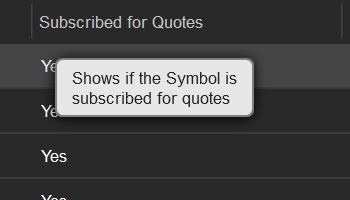
    application now contains the ‘Subscribed for Quotes’ column (note that it is hidden by default). The column shows whether a given symbol can receive new quotes from your LP. You can use it to easily filter symbols that are currently subscribed/unsubscribed to/from quotes.



  • cBroker 8.7 Updates - August 2023 05 Aug

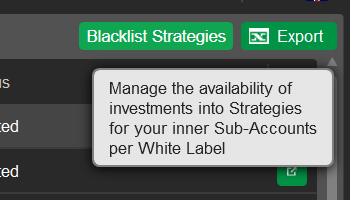
    Version 8.7 simplifies the management of Copy strategies that originated on your server or that traders from your server are invested in; these strategies are displayed in the new Strategies application. In this application, you can make informed decisions about blacklisting various strategies for certain White Labels. The strict requirements for the order of columns in the .CSV files uploaded into cBroker have been lifted, allowing for a greater degree of freedom when uploading new settings or server entities. When generating reports in the Deals application, you can now import the names of specific groups and cBroker will run reports about the accounts belonging to these groups.

    cBroker

    Easy Management of Copy Strategies

    Easy Management of Copy Strategies

    app (previously known as the Strategy Providers app) displays information about all Copy strategies whose providers are from your trading server as well as the strategies that have been followed by investors from your server. In this application, you can filter strategies using several newly-added options such as filtering out all blacklisted strategies. When a strategy is selected, you should see detailed statistics for all sub-accounts to which you have access including how much funds they have invested into the strategy and their current equity and P&L rates. As a result, you can make informed decisions about whether or not certain strategies should be blacklisted for various White Labels.


    Removing Strict Requirements for the Order of Columns in Uploaded Files

    Removing Strict Requirements for the Order of Columns in Uploaded Files

    Previously, you could only upload .CSV files into cBroker if the order of columns in these files conformed to narrowly-defined requirements. This restriction has been removed, meaning that you can now upload .CSV files in which columns are listed in any order, provided that these files still contain all the required columns. This improvement greatly simplifies the creation of all server entities for which there is a mass import option (or similar functionality). To save time, you can export entire grids containing already existing entities, modify them accordingly, convert them into .CSV and upload these files into cBroker.


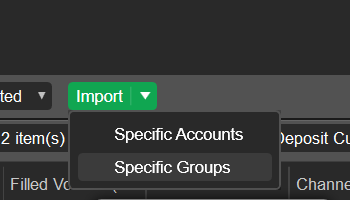
    Importing Groups for Deal Reporting

    Importing Groups for Deal Reporting

    application, you can now import .CSV files containing the names of several groups. Upon clicking on ‘Run Report’, cBroker will provide deal data for all accounts that belong to the specified groups and fit other reporting criteria. This feature can save time if you repeatedly deal generate reports for certain groups which is usually the case if you have many White Labels on your server.


    Allowing to Change the Total Margin Calculation Type After Account Creation

    Allowing to Change the Total Margin Calculation Type After Account Creation

    To extract additional value and manage risks, you can now change the total margin calculation strategies of different accounts after account creation. Note that this action cannot be performed if the account in question has open positions at the time when you want to perform the change. Furthermore, if the account that you would like to configure is a limited risk account and its limited risk margin calculation strategy is either ‘According to GSL’ or ‘According to GSL and Leverage’, you will also be unable to change the total margin calculation type.


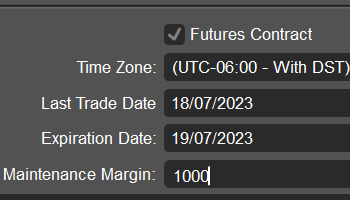
    Adding the Option to Configure the Maintenance Margin

    Adding the Option to Configure the Maintenance Margin

    application. To perform this action, choose a symbol for which you offer the futures contract functionality, and type a suitable value into the new ‘Maintenance Margin’ field. Note that enabling maintenance margin will mean that used margin for positions involving futures contracts will always equal the position volume in lots multiplied by the specified maintenance margin.


    New Loading Bars for All Transfer Settings, Bulk Update and Mass Import Actions

    New Loading Bars for All Transfer Settings, Bulk Update and Mass Import Actions

    Whenever you transfer settings, bulk update certain server entities or create new entities using mass import, cBroker will display an informative circular progress indicator summarising the progress in completing the requested action. If any errors occur, the progress window will also display the exact number of settings and/or entities for which the requested action has not been completed due to exceptions. At the click of a button, you will be able to download these exceptions into a .CSV file, which should help with identifying the cause of errors.


    Quickly Configuring Notifications Profiles

    Quickly Configuring Notifications Profiles

    application. Upon clicking on it, cBroker should open a new detached window displaying the Notifications Profile tab in the Group Profiles application.


    New Column in the ‘History per Deal’ Tab

    New Column in the ‘History per Deal’ Tab

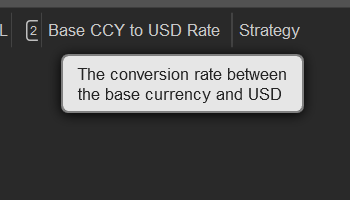
    application now contains the ‘Base CCY to USD’ column (note that it is hidden by default). It shows the conversion rate between the base asset of the symbol for which the deal was made and USD. As you can easily export this data, it can be highly beneficial for planning or risk management.


    Clarifications in the ‘Accounts’ Application

    Clarifications in the ‘Accounts’ Application

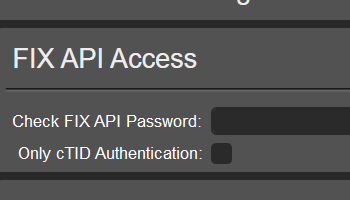
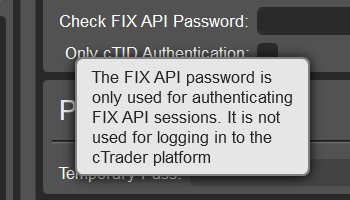
    application has been renamed to FIX Access. In this section, you can check the FIX API password for authenticating the currently chosen account and configure the availability of authentication using a correct FIX API password. The UI also provides several informative tooltips summarising this information.


  • cBroker 8.6 Updates - June 2023 03 Jun

    Version 8.6 introduces the option of monitoring the status of your LP connections which is done in the Liquidity Feeds tab of the Liquidity Feeds application (previously known as the Feed Symbol Settings application). You can now enable/disable investments in certain strategies on a per-White Label basis, allowing you to safely manage flows of funds generated via the cTrader Copy service. Moreover, you can restrict certain managers from accessing sensitive symbol settings related to markups and pricing/trading feeds. The Transfer Settings Between Servers feature has been improved by making conflict resolution for absent LP feeds more transparent and easy to use.

    cBroker

    Monitoring the Status of Connections to LPs

    Monitoring the Status of Connections to LPs

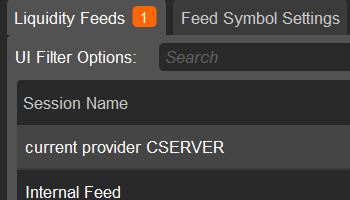
    application is a renamed version of the Feed Symbol Settings application that includes several new features; chief among them is the ability to monitor the status of your connections to LPs in real time. The new Liquidity Feeds tab contains a list of all sessions you have opened to receive data from your LPs. The orange counter to the right of the Liquidity Feeds application in the application bar always shows the current number of non-established connections you have, allowing you to quickly react to any disruptions (the same information is shown in the Liquidity Feeds tab itself).


    Adding the Option to Enable/Disable Investments in Strategies

    Adding the Option to Enable/Disable Investments in Strategies

    app now includes the option to manage the ability to invest in strategies on a per-White Label basis. When managing individual strategies you can choose certain White Labels for which you would like to enable/disable investing. After blacklisting a strategy, all accounts registered under the selected White Labels will not be able to start investing in it; similarly, already existing investors who choose to stop investing will not be able to invest again. Note that blacklisting does not prevent existing active investors from copying a strategy. However, these investors will not be able to deposit funds to their sub-accounts.


    Expanding Managers’ Access Rights

    Expanding Managers’ Access Rights

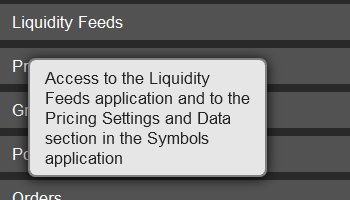
    application now includes the ‘Liquidity Feeds’ permission. This permission regulates whether a manager can access the Liquidity Feeds application and the Pricing Settings and Data section in the Symbols application.


    New Tab in the Accounts Application

    New Tab in the Accounts Application

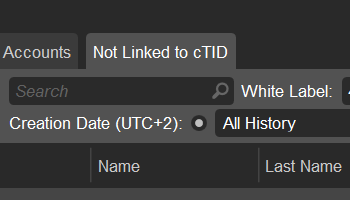
    application now contains the Not Linked to cTID tab which displays all account entities that have not yet been attributed to a cTID. The primary purpose of this tab is to highlight any cases where account-cTID linkage did not achieve its intended result. You can resolve these cases directly within cBroker.


    Amended Markups Upload Logic

    Amended Markups Upload Logic

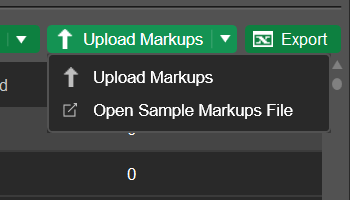
    application has been made more clear and more transparent. If you attempt to upload an invalid file or if your file cannot be parsed, cBroker will now display an error message alerting you to the fact that your upload has been unsuccessful. cBroker now also correctly recognizes ‘true/false’ as valid values in the ‘Enabled’ column of any markup settings files you may be attempting to upload. Last but not least, the ‘Markup Type’ column in such files should now contain either ‘Points’ or ‘Percent’ in plain text.


    Modified Upload Flow in the Swaps and Dividends Application

    Modified Upload Flow in the Swaps and Dividends Application

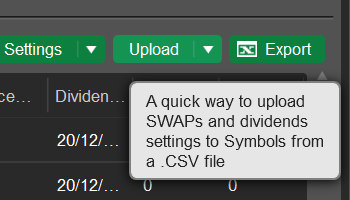
    application have been merged into one ‘Upload’ button. On click, the button shows a choice between uploading swaps or dividends values. This frees space for other important elements of the UI, most notably the search bar and valuable tooltips. If the file you are attempting to upload cannot be parsed or contains invalid values, cBroker will notify you of this face with an error message.


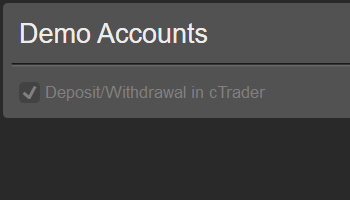
    Disabling Demo Deposits From Web Pages

    Disabling Demo Deposits From Web Pages

    application. It is now only possible to make deposits to such accounts directly inside cTrader.


    Improved Conflict Solving Solutions for Absent LP Feeds

    Improved Conflict Solving Solutions for Absent LP Feeds

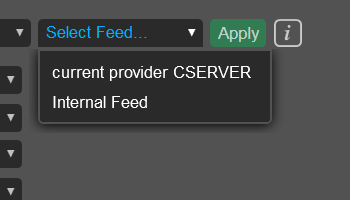
    feature has been reworked so that solving conflicts for absent LP feeds is more convenient. The ‘Symbols’ section now includes the ‘Absent Feeds’ sub-section where you can apply existing active pricing or trading feeds to one or more absent feeds. It is possible to apply active feeds individually or ‘in bulk’ to all absent feeds or absent feeds of a certain type. The ‘Feed Symbol Settings’ section now allows for creating entirely new feeds for any absent feed symbol settings.


    New Report Logics and Statistics in the Deals Application

    New Report Logics and Statistics in the Deals Application

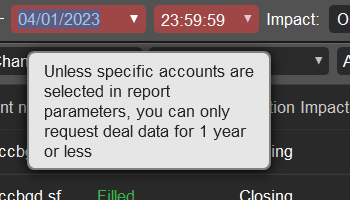
    application you can now only request deal data for no more than a year at a time. This change should reduce RAM and CPU consumption on your systems by encouraging report generation for smaller time intervals. In addition, it should be much easier to avoid accidentally requesting deal statistics for extended periods which could lead to long load times. The grids in the History per Deal and History per Accounts tab now include the ‘Strategy’ column which displays the name of the strategy that has caused a specific deal to originate.


    Adding Holiday Profiles to the Symbols Grid

    Adding Holiday Profiles to the Symbols Grid

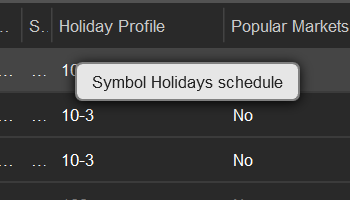
    application now includes the ‘Holiday Profile’ column that contains information about the holiday profile currently assigned to a symbol. This also means that holiday profiles are included in the exported symbols grid, allowing you to use this grid as a basis for subsequent cross-server settings transfers without having to add these profiles manually.


    Additional Confirmation Windows in the Groups Application

    Additional Confirmation Windows in the Groups Application

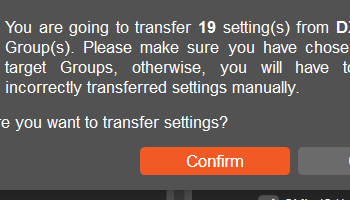
    application now displays new confirmation windows whenever you attempt to transfer settings at the group level or at the group symbol level. These windows contain all the data you need to make an informed decision on whether or not you should proceed with a transfer.


  • cBroker 8.5 Updates - April 2023 08 Apr

    Version 8.5 adds the option to deposit or withdraw credit to traders. This release also features the improved cBroker user manual now available via the cBroker User Guide application. Report settings are now separated on a per-White Label basis, allowing managers to adjust various parameters (e.g., the report recipients) depending on the brokerage(s) that a report applies to. The Accounts application has been updated to include the Exposure per Symbol section that contains per-symbol exposure statistics for the currently chosen account. Last but not least, you can now create assets of the ‘Other’ type and, if necessary, delete assets entirely.

    cBroker

    Adding the Option to Deposit or Withdraw Credit

    Adding the Option to Deposit or Withdraw Credit

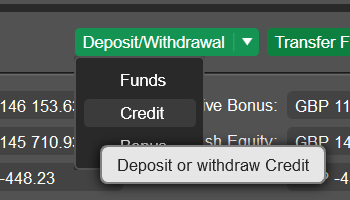
    You can now manage the allocation of credit to your traders. This change is supported in several cBroker applications. Upon clicking on the ‘Deposit/Withdrawal’ button in the Balance Info section in the Accounts application, you can now select what you want to deposit or withdraw - funds, credit, or bonus. The Accounts application also includes the Credit section in the account details column allowing you to track just how much credit has been given to a particular trader.


    New Structure of Educational Materials and Documentation

    New Structure of Educational Materials and Documentation

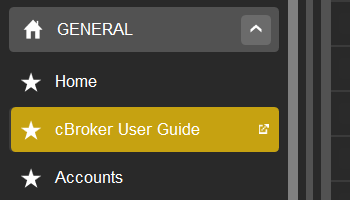
    The ‘General’ section now includes the cBroker User Guide application. This application is the point of access for the cBroker user manual - the manual itself has been expanded and improved. In the documentation portal, you can easily navigate between pages using the ‘Copy and Go’ functionality.


    Displaying Additional Information in the Accounts Application

    Displaying Additional Information in the Accounts Application

    application now contains the Exposure per Symbol section in the account details column, enabling you to easily review exposure data at the per-account per-symbol level. The Balance Info and Deals sections have been changed to display information on Book A and Book B net realized P&L.


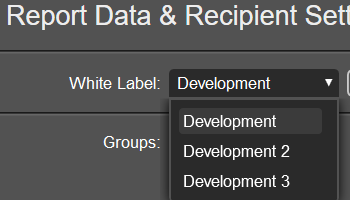
    Separating Report Settings per White Label

    Separating Report Settings per White Label

    application now allows for defining report settings on a per-White Label basis. This means that managers can establish unique lists of recipients for every White Label they have access to. Furthermore, the account groups for which reports are generated and total currencies can also be unique per White Label.


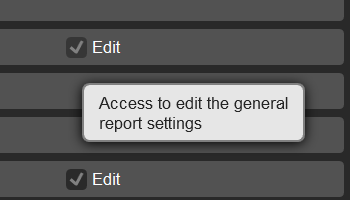
    Controlling Managers’ Access Rights to Report Settings

    Controlling Managers’ Access Rights to Report Settings

    application, the Reports permission now only regulates access to the Reports application. To offer more control over what managers can and cannot do, the permission to edit the general report settings is now given via the separate Reports: Edit flag.


    Making Asset Deletion Possible

    Making Asset Deletion Possible

    application. Note that this action is only possible to take if the asset you want to delete is not used in any symbols as a base or quote asset. This asset must also not be used as an account deposit currency or as a minimum commission currency in any commission profile.


    Adding a New Asset Type

    Adding a New Asset Type

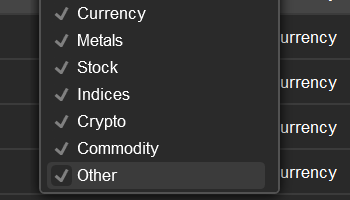
    application, you can now select ‘Other’ as a possible asset type. This new value extends the predefined list of asset types in cBroker, allowing you to create assets that do not fit into any of the standard types.


    New Sub-Accounts Filter in the History per Deal Tab

    New Sub-Accounts Filter in the History per Deal Tab

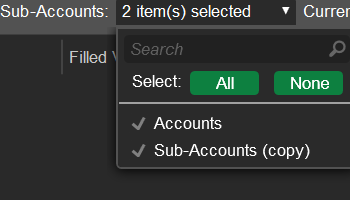
    application now has the ‘Sub-Accounts’ UI filter option. Via this option, you can easily filter deals depending on whether they were originated by fully-fledged trading accounts or accounts created just for following a strategy.


    Using Phone Trading With Non-Branded cTrader Applications

    Using Phone Trading With Non-Branded cTrader Applications

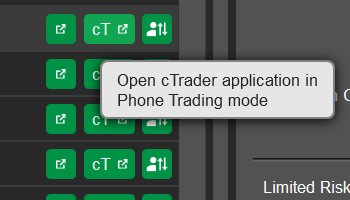
    cBroker now allows for using the ‘Phone Trading’ mode even if you do not have a branded cTrader Desktop application. In this case, initiating the ‘Phone Trading’ mode will open non-branded cTrader Desktop. Note that this functionality is only available if you are using cTrader Desktop 4.7 (or higher).


    New Confirmation Windows for the Force Trading Functionality

    New Confirmation Windows for the Force Trading Functionality

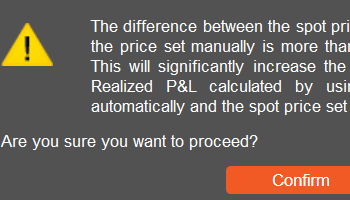
    The bulk force trading functionality has been updated to include three new confirmation windows. They are displayed when there is a significant difference between spot and force close/open prices, preventing possible errors and minimizing risks associated with force trading.


  • cBroker 8.4 Updates - February 2023 04 Feb

    Version 8.4 introduces the ability to change the pip position and lot size of already existing symbols. The Deals application now allows for generating reports containing data about specific account groups and/or certain accounts. This release also adds the symbol archiving feature, giving managers the ability to hide any symbols that they no longer need to monitor. In addition, the Managers application now supports saving custom access rights templates, simplifying control over managerial permissions.

    cBroker

    Changing the Pip Position and Lot Size of Existing Symbols

    Changing the Pip Position and Lot Size of Existing Symbols

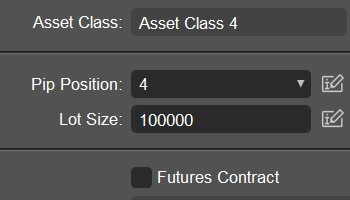
    With the latest release, it is possible to change the pip position and lot size of already existing symbols which should simplify setting up new servers and managing any existing ones. This action is only possible when a symbol is not subscribed to quotes.

    New Report Parameters in the Deals Application

    New Report Parameters in the Deals Application

    application, you can now generate reports containing data about specific account groups. In addition, you can also generate reports showing data about certain accounts. This simplifies reporting by enabling you to quickly receive deal statistics for the exact traders that you would like to monitor.


    New ‘Offsetting’ Filter in the ‘History per Deal’ Tab

    New ‘Offsetting’ Filter in the ‘History per Deal’ Tab

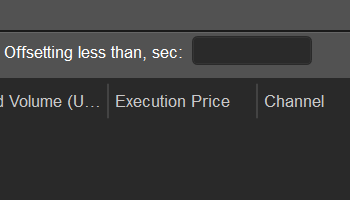
    application. It allows for filtering deal entities based on their offsetting duration (the difference between the first opening deal and the final closing deal for a particular position). As a result, you can quickly detect deals that may have been originated by ‘scalper’ accounts.


    Supporting Symbol Archivation

    Supporting Symbol Archivation

    Managers with the ‘Symbols.Edit’ permission can now archive symbols in the Symbols application. After archiving, the symbol will be added to the new ‘Archived Symbols’ tab; it will not be shown when managing symbols or other server entities related to symbols such as feed symbol settings.


    Setting Optional Parameters When Creating Symbols

    Setting Optional Parameters When Creating Symbols

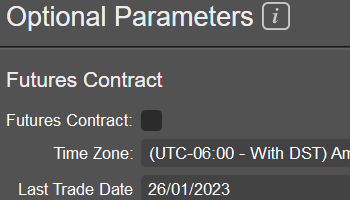
    When creating new symbols (either individually or via mass uploading), you can now specify the values of several optional parameters including futures contracts settings, default swap values, and custom markups. This quality-of-life feature reduces the amount of time needed to configure new symbols created individually, via mass import, or by using the Symbol Import Wizard.


    Updating Feed Symbol Settings in Bulk

    Updating Feed Symbol Settings in Bulk

    The newly added ‘Bulk Update’ feature allows for uploading a .CSV file containing custom settings for existing feed symbol settings. After a successful upload, any existing feed symbol settings that you have listed in the .CSV file will be updated with the settings from that file.


    Transferring Settings Between Feed Symbol Settings

    Transferring Settings Between Feed Symbol Settings

    application now includes the option to transfer settings between feed symbol settings. This feature is useful if you want to quickly enforce certain rules (e.g., deal expiration timeouts) across large numbers of feed symbol settings.


    Changing the Logics of the ‘Popular Markets’ Display

    Changing the Logics of the ‘Popular Markets’ Display

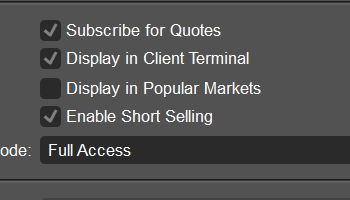
    application is empty. To do so, enable/disable the ‘Display in Popular Markets’ flag in the Symbols application.


    Saving Custom Access Rights Templates for Managers

    Saving Custom Access Rights Templates for Managers

    application. To access this feature, select a manager and click on ‘Save Template’. After creating a new template, the template will appear as a selectable option in the ‘Manager Role’ menu in the ‘Access Rights’ section. Note that you can also overwrite any existing templates.


    Redesigned Bulk Force Close Window

    Redesigned Bulk Force Close Window

    application has been redesigned. Positions can now be filtered by group or by White Label of the accounts that have opened them. Instead of closing all positions/canceling all pending orders, you can now select individual positions/orders to be closed or canceled.


    Improved Trade Notifications

    Improved Trade Notifications

    application. We have also redesigned pop-up trade notifications to be more informative and easy to read.


    New Period Selectors in the Accounts Application and Changes to Balance/Deal Statistics

    New Period Selectors in the Accounts Application and Changes to Balance/Deal Statistics

    application (e.g., the ‘Transactions’ and ‘Bonuses’ tabs in the account details column), you can now use period selectors to generate reports for certain timeframes rather than requesting all past data at once. Note that ‘Today’ is the default value in these period selectors. The ‘Balance’ and ‘Deals’ sections have also been redesigned.


    New Columns in the Grid in the Symbols Application

    New Columns in the Grid in the Symbols Application

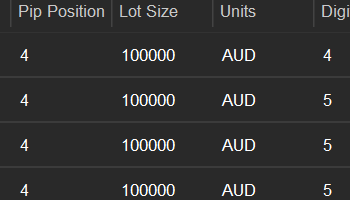
    application has been expanded to include four new columns, namely ‘Pip Position’, ‘Lot Size’, ‘Units’, and ‘Trading Mode’. You can quickly receive information about these parameters without selecting a symbol and having to find the corresponding fields in the symbol details column. Note that all four columns are hidden by default.


    Exporting Price Streams, Swaps and Dividends Profiles, and Exposure Statistics

    Exporting Price Streams, Swaps and Dividends Profiles, and Exposure Statistics

    application. _ Bugs Some minor internal bugs have also been fixed in this release.


  • cBroker 8.3 Updates - December 2022 03 Dec

    Version 8.3 introduces the ability to transfer certain server entities and their settings between trading servers. The Home application contains informative ‘How to…?’ videos about cBroker. This release also adds the ‘White Label Supervisor’ permission for managers.

    cBroker

    Educational cBroker Videos in the Home Application

    Educational cBroker Videos in the Home Application

    Starting with version 8.3, the Home application includes educational ‘How to…?’ videos about certain cBroker features such as customizing the appearance of symbols in the cTrader UI. New videos will be added regularly to showcase how to work with various settings and server entities.

    Transferring Settings Between Servers

    Transferring Settings Between Servers

    You can now click on the Transfer Settings Between Servers option in the Global Tools menu to access several new controls. These controls allow for selecting certain entities and their settings (e.g., one or more session profiles), and downloading an encrypted JSON file containing this data. When managing a different server, the same window can be opened to upload this JSON file and automatically add all downloaded entities with their unique settings to this server. This feature also includes a built-in conflict resolution service.

    New ‘White Label Supervisor’ Permission for Managers

    New ‘White Label Supervisor’ Permission for Managers

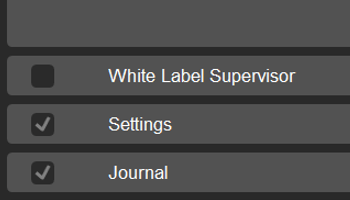
    The Managers application now includes the ‘White Label Supervisor’ permission in the Access Rights tab. If this permission is granted to a manager, said manager will, by default, have access to all new White Labels added to the trading server. Alternatively, if a manager does not have this permission, all new WLs will be automatically added to their respective ‘Disabled White Labels’ list.


    New Counters in the Modify Charts Window

    New Counters in the Modify Charts Window

    In the Modify Charts window, the Edit History and Add History tabs now have new counters summarizing statistics about the items displayed in their respective central grids. These counters display data about the number of rows with certain statuses or the total number of rows in the currently open grid.


    Saved Currency Preferences in the Accounts Application

    Saved Currency Preferences in the Accounts Application

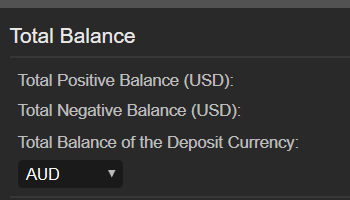
    application now saves your preferred currency for displaying the ‘Total Balance of the Deposit Currency’ and ‘Total Equity of the Deposit Currency’ statistics. This is done on a per-manager per-environment basis.


    Amended Managerial Permissions to the Settings and Reporting Entities Applications

    Amended Managerial Permissions to the Settings and Reporting Entities Applications

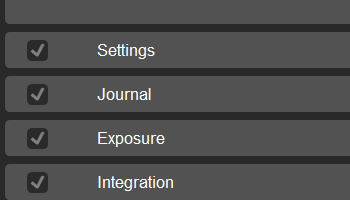
    application has now been renamed to ‘Settings’ to reflect the fact that it regulates access to the Settings application. If a manager does not have this permission, they will also not be able to access the Reporting Entities application. If a manager has the ‘Settings.Edit’ permission, they will also be able to edit and create reporting entities.

    Enabling/Disabling Traders’ Ability to Change Stop Out Types

    Enabling/Disabling Traders’ Ability to Change Stop Out Types

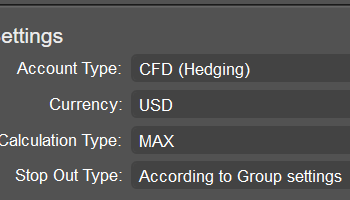
    application now includes a new ‘Allow Traders to Change Stop Out Type’ menu. If ‘Enabled’ is chosen, trading accounts will be able to change their stop out type directly within cTrader applications. Alternatively, if ‘Disabled’ is chosen, it will only be possible to change stop out types at the group level in the Groups application. The new ‘Stop Out Type’ field in the Account Settings tab in the Accounts application will display either ‘According to Group settings’ (if stop outs are dictated at the group level) or a trader’s preferred stop out method. Note that the option to change stop out types will be added to cTrader applications at a later date. _ Bugs Some minor internal bugs have also been fixed in this release.

  • cBroker 8.2 Updates - October 2022 01 Oct

    Version 8.2 adds several new features, most importantly White Label (WL) management and an import wizard for trading instruments. Additional improvements are made to the cBroker UI including the option for duplicating certain server entities.

    cBroker

    Controlling White Label Availability for Managers

    Controlling White Label Availability for Managers

    Starting with version 8.2 and onwards, cBroker provides a built-in means for defining White Label availability on a per-manager basis. Managers’ access rights to WLs and the associated traders can be disabled in the Managers application using the newly added Disabled White Labels field. Additionally, clicking on the White Labels Management button enables controlling access rights to various WLs on a large scale.


    Duplicating Features

    Duplicating Features

    Streamlining managers’ workflows, we have added the Duplicate Entity button to three major applications, namely Managers, Symbols, and Assets. This feature offers a convenient means of quickly creating new server entities.


    Moving Price Filtering to the Symbols Application

    Moving Price Filtering to the Symbols Application

    Instead of having to switch to a separate application, managers can now configure price filtering within the Symbols application. This change streamlines the cBroker UI and makes per-symbol control over quote drops and negative spreads more intuitive.


    Export Group Symbol Settings

    Export Group Symbol Settings

    The Export button has been added in the Symbol Settings tab in the Groups application. By exporting group-level symbol settings into an .XLSX file, managers can quickly compare symbol settings across different groups.


    Improved Live Chat UI

    Improved Live Chat UI

    The UI of the Live Chat application has been overhauled to make it more user-friendly. For example, managers can now easily configure the frequency of chat-related sound notifications. In addition, managers can choose to receive pop-up notifications about unread messages inside cBroker.


    Demo Account Creation Rules for Broker OAuth

    Demo Account Creation Rules for Broker OAuth

    Prior to the 8.2 release, it was only possible to specify demo account creation rules in the Account Creation tab of the GUI Settings application. We have also added these settings to the Broker OAuth tab to enable brokers to control the various aspects of demo accounts created via Spotware’s OAuth flows.


    Reordered Application Sections

    Reordered Application Sections

    Some minor internal bugs have also been fixed in this release.


  • cBroker 8.1 Updates - July 2022 23 Jul

    The 8.1 version comes with several new features. The most important are Creation of Assets and Symbols that allows brokers to create Assets & Symbols using cBroker both - one at a time and massively, Weekend SWAPs, Grace Period for SWAPs, Transfer of Basic Symbol Settings and much more.

    cBroker

    Creation of Assets and Symbols

    Creation of Assets and Symbols

    No more email correspondence and no more waiting for Assets and Symbols to be added. Now you can create Assets and Symbols using cBroker both - one at a time and massively. Ιmporting process lasts less than 1 minute for 10K assets and less than 2 minutes for 10K Symbols. For every type of imported data, we added CSV files with examples and descriptions of every field. To simplify the setting of Symbol Default Profiles, we also added the export feature to Symbol Sessions and Group Profiles applications, so each Manager can download the list of Profiles from the respective application and tab and move the value to CSV file via Copy/Paste.


    SWAPs on Weekends

    SWAPs on Weekends

    Up to now, weekends were ignored in terms of SWAPs calculations. Now you can check the box and define if SWAPs should be charged on weekends. As per usual, we do not have limitations on the asset classes for which this option can be enabled.


    SWAPs Grace Period

    SWAPs Grace Period

    SWAPs were always charged from the first day for all positions. Now, you can define Grace period for Non-Shariah-Compliant accounts. This feature is similar to the Market Standard of Grace period, applied to Shariah-Compliant (Islamic) accounts, but the addition of it to our general SWAP functionality gives our cTrader brokers more flexibility in defining your trading conditions.


    Transfer of Basic Symbol Settings

    Transfer of Basic Symbol Settings

    Up to now, only Symbol Profiles could be massively transferred between symbols. Now a new Transfer Basic Symbol Settings feature has been introduced, and you will be able to transfer basic Symbol settings such as the subscription on quotes, trading mode, displaying in client terminals, and others between Symbols.


    Broker OAuth - Custom Links Setup

    Broker OAuth - Custom Links Setup

    Broker OAuth - soon to be released - will allow brokers to use their own authentication and authorization infrastructure instead of cTrader ID, for the purposes of signing up or signing in to the cTrader platform providing a frictionless sign up and sign in experience to the end user as well as improving the flow of user acquisition for brokers. Custom links setup has been added to cBroker to allow the proper configuration of Broker OAuth processes.


    Improving and Expanding Force Trading Feature

    Improving and Expanding Force Trading Feature

    The possibility to cancel pending orders has been added in the Order details window. Now you can cancel an order within the Order details window, without having to navigate to the Symbols application. Additionally, the Force Bulk Close window in the Symbols application has been improved - UI updated, options to close positions and cancel orders divided.


    Ability to Configure Popular Markets in Symbols

    Ability to Configure Popular Markets in Symbols

    Up to now Symbols were not appearing in the Popular Markets section of cTrader platform despite their existing in GUI Settings due to their absence on the environment (for example, in case you have different sets of Symbols for Demo and Live environments).. Therefore, the flexibility of configuring Popular Markets in Symbols application has been added. if a Symbol is signed for displaying in the Symbols application and if it is absent in Country sets or/and in Default Watchlist of the Popular Markets section of GUI Settings application, then the setting from Symbols application will be used.


    Separate Settings of Deposit Currencies for Demo and Live

    Separate Settings of Deposit Currencies for Demo and Live

    Separate deposit currencies for Demo and Live environments can now be configured, using new sections in the GUI Settings application of cBroker. All current settings from the old section will be automatically moved to new ones, considering the existence of the currency in the environment.


    Flexible Recalculation of Accounts' Balance and Equity

    Flexible Recalculation of Accounts' Balance and Equity

    Some minor internal bugs have also been fixed in this release.


  • cBroker 8.0 Updates - May 2022 07 May

    Several new features have been added to cBroker 8.0. Some of these include the redesign of the main menu, offering an improved user experience, the addition of separate applications for custom notification tabs, the introduction of a brand new home page, the inclusion of white label filters in several apps, as well as the addition of new columns in some of the grids.

    cBroker

    Main Menu Remastering

    Main Menu Remastering

    The main menu has been redesigned and remastered. The overall user friendliness and usability have been improved. Sections can now be expanded/collapsed, users can search for applications, favorite applications can be selected and shown in a separate section.


    Home Application

    Home Application

    We added a new application called Home. In this application, you will find all the new updates released for cBroker that are also shown in the “What’s New” section, as well as a list of all the features available for brokers on the cBroker and cTrader platforms.


    Separate Applications for Custom Notifications

    Separate Applications for Custom Notifications

    Separate applications have been introduced for Custom Push Notifications and Custom Blotter Messages. You can now access these features directly from the main menu.


    Realized Conversion Fee

    Realized Conversion Fee

    Realized Conversion Fee has been added to the Active Accounts tab of the Accounts application. Now you can see the conversion fees charged to each account for a specified period by extracting the relevant report.


    White Label Filters

    White Label Filters

    A White Label filter has been added to Copy Trading, Partners and Transactions applications. Records in these applications can now be filtered by the White Label field.


    EOD Group Column

    EOD Group Column

    The Group report parameter and the column have been added to the EOD report. This option allows users to request EOD Reports by group and analyze the reports’ flexibly after they have been exported.


  • cBroker 7.9 Updates - February 2022 26 Feb

    In cBroker 7.9 we have added a number of new features. The most important ones include a new Client Notifications application, remastered Modify Charts functionality, the option to specify a short title for each White Label, as well as the option to filter by White Label in Accounts, Positions, Orders and Deals applications. Several other UI improvements have also been implemented.

    cBroker

    Currency Conversion Fee

    Currency Conversion Fee

    The option to charge extra commission for each PnL conversion has been added to Commission Profile in the Group Profiles application. Now, extra commission can be charged in cases when the position is closed and the position’s instrument has a different Quote Asset than the trader’s Deposit Currency. Note that the feature may be available in cBroker only after all cTrader 4.3 version releases. It is necessary for the transparency of commissions for traders. After that, to enable the feature, please contact sales@spotware.com.


    Client Notifications

    Client Notifications

    The Client Notifications app has been added to cBroker. You can now send custom Blotter and push notifications to your cTrader Mobile clients. The application gives you the option to create and preview the notifications before you send them. To enable the application, please contact sales@spotware.com.


    Modify Charts Refactoring and UI Improvements

    Modify Charts Refactoring and UI Improvements

    Deep refactoring and several UI improvements have been introduced in the Modify Charts form inside the Symbols application. A suitable option, such as filter by valid or invalid trend bars, and a loader for each tab while loading the data have been introduced. Some tooltips have been modified to make the functionality more transparent as well.


    General App Update

    General App Update

    The option to specify a short title for each White Label has been added to the General app. At the same time, the rest of the fields have been rearranged to provide a more user-friendly experience.


    White Label Filters

    White Label Filters

    White Label filters have been added to Accounts, Positions, Orders and Deals applications. Now you can select the relevant White Label, filter your data, and analyze all the statistics accordingly.


    Default Swaps and Dividends

    Default Swaps and Dividends

    All the fields inside the Swaps and Dividends profile of the Swaps and Dividends application have become optional. You can delete the values from the Profile, and then Swaps will be charged and Dividends will be paid according to default Symbol values as initially when creating the Symbol. Also, the Default Settings column has been removed from the Profile details. Now every field of the Profile can be determined as default separately. In this case, the field text will be blue.


    Common Period Selector

    Common Period Selector

    Period selector has become common in all tabs in the Deals and Transactions applications. Now if you change the report period in one tab, the change will be reflected in other tabs as well.


    Edit Group Name

    Edit Group Name

    The group name field has become editable. Now you have the option to change an existing group’s name.


    Force Trading Permission

    Force Trading Permission

    Force Trading permission has been added to Managers’ permissions. Now you can give the permission to Managers to force open and force close positions.


    Default Layout Options

    Default Layout Options

    “Charts and Trade Watch” and “Charts Only” options have been disabled. Note if these options are currently set, they will be replaced with similar ones with the “Active Symbol Panel” option by Spotware Support after the release.


    Price Streams Update

    Price Streams Update

    The Price Streams application has been updated to make it more efficient and consistent with Group Profiles.


  • cBroker 7.8 Updates - January 2022 01 Jan

    cBroker 7.8 comes with new features, such as new options for SWAPs and Dividends, access to Groups by mask, the option to see your collateral transactions, as well as the ability to set your Commissions charge time. Additionally, the update introduces a lot of usability improvements for a better user experience.

    cBroker

    Access to Groups by Mask

    Access to Groups by Mask

    The option to provide managers access to Groups using a mask has been added. You can now specify a mask, and your Manager will get access to all Groups with a name determined by the mask, instead of having to provide explicit access to each individual group.


    Multiple SWAPs per Day

    Multiple SWAPs per Day

    SWAP Time and SWAP Period options have been added to the Symbols application and to the SWAPs and Dividends application. Now you can choose the time and period at which SWAPs are charged on a per Symbol basis.


    Dividends Time in Profile

    Dividends Time in Profile

    Dividends Time has been added to the SWAPs and Dividends application. You can now configure the date and time at which Dividends will be paid for each Symbol in the appropriate Profile.


    Commissions Charge Time

    Commissions Charge Time

    The SWAPs Charge Time option has been replaced by Commissions Charge Time in General application, since SWAPs Charge Time has been moved to the Symbols application and to the SWAPs and Dividends application.


    Collateral Transactions

    Collateral Transactions

    The history of collateral payments is now available in the newly added Transactions tab, inside the Collateral application.


    Slippage per Order Type Footer

    Slippage per Order Type Footer

    A footer has been added to the Slippage per Order Type tab in the Deals application. The footer displays useful information, such as total slippage statistics, as well as slippage statistics per Order type, Symbols and Counterparties.


    Negative Markups Warning

    Negative Markups Warning

    A warning has been added when trying to set negative markup values on Symbols. This will protect you from accidental mistakes in markup configuration that can lead to inverted spread for the Symbols.


    Transfer Settings Confirmation

    Transfer Settings Confirmation

    A confirmation request has been added to the Transfer Settings feature inside the Symbols application. This will protect you from accidental setting of transfers across Symbols.


  • cBroker 7.7 Updates - November 2021 20 Nov

    The cBroker 7.7 version offers improved performance of the Positions application, as well as a new data loader indicator in Deals, Orders and Positions applicatons, which shows memory consumption and remaining memory, as well as remaining time during the data receiving process.

    cBroker

    New Loader

    New Loader


  • cBroker 7.6 Updates - October 2021 09 Oct

    Several new features are introduced in cBroker 7.6. The most important are the introduction of trade notifications, impact and status report parameters, conditional book selection for orders execution and a per symbol partners commission option. Moreover performance and usability improvements on existing features have been delivered.

    cBroker

    Impact and Status Report Parameters

    Impact and Status Report Parameters

    Impact and Status report parameters have been added to Deals application report requests. Using the new parameters, you can reduce the download time required by filtering unnecessary deals from your reports. This feature results in a reduction of approximately 50% in the time needed to receive the requested deals.


    Orders and Deals Apps Performance Improvements

    Orders and Deals Apps Performance Improvements

    The performance of the Orders and Deals applications has been improved drastically, resulting in faster load times and reduced RAM consumption.


    Notification Profiles

    Notification Profiles

    A new tab for Notification Profiles has been added to the Group Profiles application. The new tab allows you to set up notification profiles for receiving notifications via cBroker or email when the filled volume of an order exceeds a certain volume. Different notification profiles can be assigned to different groups and symbols.


    Trade Notifications

    Trade Notifications

    Trade Notifications application has been added. The new application allows you to access and read the trade notifications set up for your accounts according to Notification Profile.


    Execution With Condition

    Execution With Condition

    An option to conditionally execute an order on a certain Book, depending on submitted volume, has been added to execution profiles. Now you can choose to execute an order on Book A, if the submitted volume surpasess a predefined threshold. Else the order will be executed on Book B.


    Partner Commission per Symbol Category

    Partner Commission per Symbol Category

    The option to configure different commissions per symbol category has been added to the Partners and Introduced By sections of the Accounts application.


    Slippage per Symbol Footer

    Slippage per Symbol Footer

    A footer has been added to the Slippage per Symbol tab in the Deals application. The footer displays useful information like total slippage statistics as well as slippage statistics per order type, symbols and counterparties.


    Export Deals to Many Sheets

    Export Deals to Many Sheets

    Up to now, cBroker was limited to only exporting 1048576 deals per report. This limitation has been lifted by allowing cBroker to export more deals in additional Excel sheets.


    cTrader User Guide

    cTrader User Guide

    A link to cTrader User Guide has been added to the Help links, allowing straight-forward access to the cTrader User Guide portal.


  •